
Team
Rohit Gupta
Ezra Lee
Anton Abilov
Overview
I spent this summer in New York working as a Member of Technical Staff at Forus, building agents that help people get their medication cheaper, faster and easier. This is a recollection of some interesting projects and a few of the things I shipped there.
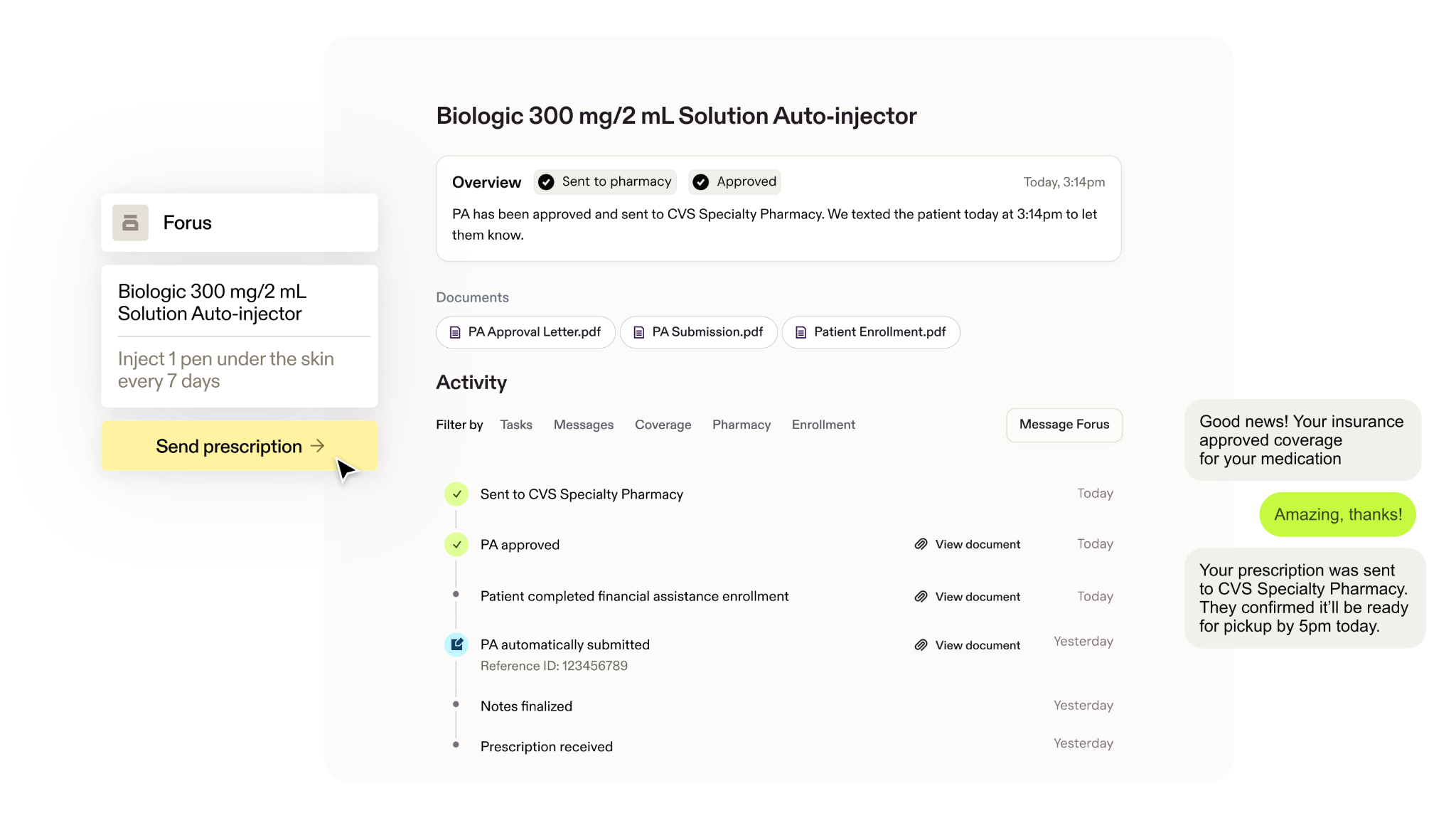
Forus is building the AI network to accelerate the entire medicine pipeline, from development and launch through prescription and treatment. It connects the companies creating medicines with doctors who prescribe them and patients who need them. The part relevant to my work is helping a patient get their medicine, from prescription through insurance claim to receiving it at the pharmacy.
Using Agents to Create Deterministic Browser Workflows
Prior authorization is when an insurer requires approval before covering a medication. Part of automating that process at Forus involves extracting clinical information from a provider's electronic health record system (EHR) for our agents working on the patient's prior auth claim.
That can mean finding a patient, opening their chart, and collecting the relevant documents, demographics, or lab results from a doctor’s health record system.
Different practices and specialties use different EHRs, and we often lack access to a reliable API for the information we need to extract. Historically, we used deterministic Selenium scripts to extract data. Those scripts are brittle and require configuration for each EHR.
As Forus scales, we face the challenge of integrating with many new EHRs so we can work with more practices.
Each EHR is unique; even instances of the same EHR can have different interfaces and selectors. Writing and maintaining browser automation for all those workflows and edge cases takes significant engineering time.
The tempting answer was to give an agent a browser and ask it to extract the data on every run.
I thought that was a naive approach for this workload. Because we run it so often, we'd be paying a lot for a model to repeatedly work out navigation that we could already describe in code.
More importantly, this was a provider's EHR. We would be giving an agent access to an authenticated system with patient records and controls; it could do more than read information.
Even if our goal was extraction, the model still had to decide where to click, and it could be wrong. We can’t take that risk because an agent could unintentionally delete or edit a patient record.
I wanted to build a system that let me use the agent's capabilities while building the automation, then preserve the workflow as deterministic code for subsequent runs.
Generated scripts can still break when an EHR changes. This approach reduces the time it takes to author and revise them while keeping execution deterministic. The existing scripts used Selenium; the authoring system I built generated Playwright code.
Design Constraints
A tool to author code with a human in the loop.
Reusable Scripts
The output should run in production without a person approving every action.
Can Still Be Wrong
An agent can generate deterministic code that’s wrong.
Human Review
Human review and approval had to be an explicit part of generating and authoring code.
Making the Proposed Action Visible
I built an authoring system that connected an agent to a live browser through MCP. The server exposed tools for observing the page, inspecting the DOM and network activity, and performing actions.
The agent would propose an action, but I wanted evidence that it would do what we expected. For example, it might propose clicking #patient-chart-save, an illustrative EHR selector. The name suggests a button that saves the patient’s chart, but the selector alone doesn’t show which control it matches or what clicking it will do. We didn’t want to approve an ambiguous action.
I realized I could manipulate the DOM to highlight the agent’s target in the live browser, then wait for a person to approve the action. This was much better because the human could visually confirm what the agent was about to do. Only after the action ran successfully could its corresponding code enter the script.
The distinction between observing and acting mattered.
observe_page returned interactive elements with reusable selectors.
inspect_dom supplied a pruned structural view for unusual controls.
inspect_network helped locate requests behind page content.
These discovery tools didn't add steps to the generated script.
Tools such as act, capture_response, and extract_to_results performed workflow actions or produced script steps and required approval.
The highlight gave the operator something clear to evaluate or approve.
If the operator rejected the action, they could explain why, giving the agent context for its next proposal. If they approved it, the server executed the action and returned the corresponding Playwright statement once the action succeeded.
Two Separate Gates
Human approval of tool calls left another gap. The agent was also editing a code file. It could execute approved actions through our tools, then independently add a plausible action to the script.
To close that gap, I added a ledger that tracked actions that had been executed and tested.
After a tool completed successfully, the server recorded the exact statement it had generated for that action.
A simplified entry in ledger.jsonl:
{
  "timestamp": "2026-08-01T12:00:00Z",
  "tool": "act",
  "line": "await page.get_by_role(\"button\", name=\"Search\").click()"
}
Before a script edit, a check required any added browser action lines to appear in that ledger. Failed actions didn't produce a ledger entry.
This gave us two distinct checks:
Agent to live browser
Human approval, with the target highlighted where applicable
Review what is about to happen in the EHR
Agent to generated script
Action line must exist in the executed action ledger
Keep unexecuted actions out of the output
The second check was important because a browser session approved by a human and the generated file weren’t automatically the same thing. We needed to constrain both.
The ordering inside the action path was important. This is a simplified reconstruction:
async def act(selector, action, value=None, parameter=None):
    line = render_action(selector, action, value, parameter)
    locator = resolve_selector(page, selector)

    await require_fresh_human_approval(locator)
    await perform(locator, action, value)

    ledger.append(line)
    return {"canonical_line": line}
Rendering happened before execution, so invalid action combinations could fail before a user attempted to run them. Appending happened after execution, so a failed click couldn't become a verified script step.
The check before writing then compared browser action lines against those recorded statements. This was an enforceable contract to ensure determinism.
Challenges in Highlighting a Selector
For highlighting to be useful, we had to know what a selector actually addressed and where it was. EHR websites make this surprisingly annoying.
The pages can contain nested iframes, duplicate IDs, custom controls, and frames that don’t respond when inspected. A selector that looks reasonable in a text description may not do what it seems to do, or even match an existing element.
For ordinary controls, the observe_page tool preferred accessible role and name, then labels, unique IDs, and scoped CSS selectors.
The inspect_dom tool returned a structural DOM view with scripts, styles, and irrelevant containers removed so the agent could inspect custom controls without reading the entire page source.
The agent was instructed to reuse the selectors emitted by the tooling.
The Iframe Name Problem
One recurring issue when highlighting or finding a selector was that Playwright's reported frame name could fall back to the iframe element's ID. Consider this element:
<iframe id="GlobalNavigation"></iframe>A frame name of GlobalNavigation doesn’t mean the element has a name attribute. Generating iframe[name="GlobalNavigation"] would match nothing.
iframe[name="GlobalNavigation"]id="GlobalNavigation"iframe#GlobalNavigationid="GlobalNavigation"The fix was to inspect the actual iframe element in its parent document. A candidate selector had to match exactly one element, and that element had to be the frame we were inspecting. A simplified version of that check looked like this:
function verifiedSelector(iframe, candidates) {
  const root = iframe.getRootNode();

  for (const selector of candidates) {
    const matches = root.querySelectorAll(selector);
    if (matches.length === 1 && matches[0] === iframe) {
      return selector;
    }
  }
  return null;
}
Candidate generation tried escaped IDs, actual name attributes, and positional fallbacks to tie the selector back to the frame.
For a control inside nested frames, a single frame selector wasn't enough. We walked the frame's ancestry back to the main document, reversed it, and derived a selector for each frame boundary. The resulting locator preserved that path:
target = (
    page.frame_locator("#workspace")
    .frame_locator("#patient-chart")
    .get_by_role("button", name="Lab results")
)
The representation also needed to distinguish two cases that are easy to conflate accidentally in Python:
[] meant the element was in the main document.
None meant we couldn’t establish an addressable frame chain.
A check like if not chain would treat both alike and could cause a child frame element to be emitted as if it belonged to the main page. Unaddressable frames had to be skipped explicitly.
There were practical performance constraints too. Sibling frames often shared ancestors, so we cached derived frame selectors within an observation pass.
Keeping the cache scoped to that pass avoided treating a selector from an earlier DOM state as indefinitely valid.
Highlighting used that same frame chain. If the target was missing, ambiguous, or couldn't be highlighted, the approval prompt reported that instead of telling the human to look for an outline that wasn't there.
Automating EHR Password Resets
Another interesting project was one I shipped during my last week at Forus. We work with a lot of electronic health record systems, and some periodically force us to reset passwords. When this happened, the extraction worker would detect it and mark the account as PASSWORD_RESET_REQUIRED.
This meant we could no longer extract data using that account until an operator reset the password in the EHR, updated 1Password, and synced it with AWS Secrets Manager.
Looking through the data, I realized this could take hours, with some cases taking multiple days. Prescriptions that needed data from those accounts were left waiting.
The Reset Flow
I took a first pass by writing scripts to handle the reset flow, using the EHR RPA server to generate all the deterministic Playwright code. I then ran these scripts through a cron in a single pod that was always on. The pod ran the scheduling loop, checking ehr_login_state every five minutes for accounts marked PASSWORD_RESET_REQUIRED. For each account, it picked the right reset engine for that EHR, which handled its password requirements and browser flow.
Staging the New Password
The first step was using Python's secrets module to generate a password that met the EHR's requirements.
But I couldn't just submit it and save it afterward. If the EHR accepted it and our process crashed before saving it, we'd have lost the working password.
Replacing the stored password first had the opposite problem: we'd be treating it as usable before the EHR had accepted it.
So I used AWS Secrets Manager's versioning. Before submitting anything, the cron stored the generated password as a new version of the same secret, labelled AWSPENDING. The existing version kept its AWSCURRENT label, so workers continued reading it. We had saved the new password without switching workers over to it.
The reset engine then logged into the EHR, clicked the right selectors, filled out the password fields, submitted the form, and waited for confirmation. Once that succeeded, the cron updated 1Password and promoted the AWSPENDING AWS version to AWSCURRENT, preserving the other credential fields. It then set login_state = OK, cleared the login failure counter, and cleaned up the AWSPENDING label. Workers could resume on their next poll without a restart.
Failed and Interrupted Resets
If a reset failed, the account stayed paused. The cron kept the AWSPENDING password, incremented the attempt counter, and sent an alert so the failure could be investigated.
On startup, the cron also checked for AWSPENDING versions left by interrupted runs before starting new resets. If the AWSCURRENT password worked, it could discard the AWSPENDING version. If the AWSCURRENT password was rejected and the AWSPENDING password worked, it could finish syncing the credentials. If it couldn't confirm either password worked, the account stayed paused for an operator.
I compared a handful of cases that went through the new reset flow with previous recoveries for the same accounts. The average recovery time went from 7 hours and 13 minutes to 4 minutes and 41 seconds, a 98.9% reduction.
These were a few projects I worked on over the summer that taught me to think carefully about where to stop using agents. Not everything needs to be agentic, and I learned to favor determinism wherever possible.